
.svg)

.svg)

Should your team use the Dash extension, the app, or both?
When marketing, creative, and cross-functional teams decide to bring AI-powered tools into their workflow, one of the first questions they encounter is simple—how should we actually use them day to day? Some prefer tools that live inside the browser. Others want a dedicated desktop app they can keep open throughout the day.
What matters most isn’t the format—it’s choosing the option that helps people work with the least friction.
Dropbox Dash was designed to meet different types of teams wherever they spend their time. Whether installed as a browser extension or used as a standalone app, Dash is meant to be accessible anytime, anywhere. Both options tap into the same intelligence, the same securely connected content, and the same AI-driven capabilities.
The difference comes down to how teams like to work, how they switch between tasks, and how they integrate AI into daily decision-making. Here we’ll explore what to consider so you can make the right choice.

Why teams consider different Dash deployment options
Some teammates want help right in the browser, beside the tools they already use. Others prefer a set workspace that they can anchor their day around. If Dash is going to add value, it has to fit those realities.
No two teams build their workflows the same way. Designers may live in their creative tools, writers often spend entire days in browser-based editors, and others jump between calendars, presentations, and shared documents.
This diversity creates a challenge—introducing AI without interrupting established habits. Dash users often want:
- Minimal disruption during onboarding
- Access to AI insights wherever files appear
- Support for fast-moving creative cycles
- A choice between lightweight or fully immersive experiences
- An option that works across departments without heavy training or complex setup
The good news is that Dash doesn’t force a single workflow. Instead, it adapts to the one you already use—whether that means a browser extension that follows you from tab to tab, or a focused app you can use as your daily hub.
How the Dash browser extension works
Instead of opening a separate app or juggling windows, the browser extension brings AI-powered Dash features into the exact tabs where work is already happening.
The Dash browser extension is available on Chrome, Edge, or Safari, and brings AI assistance directly into the places many teams already spend their time—news articles, web apps, shared documents, cloud tools, and messaging platforms:
- Summarize any webpage: With the Dash extension, you don’t just have access to your connected apps, you can also summarize, ask questions about, or draft copy about content open in your browser. Whether you’re drafting an email to your clients about how a news story impacts your Q4 strategy, or summarizing a live PDF without needing to store a copy in your Dropbox account, Dash has you covered.
- A lightweight overlay for quick actions: With the extension, Dash appears as an overlay when you need it. If a marketer is reviewing campaign copy in a browser editor, they can open Dash to clarify messaging, rewrite content, or search for related project files without switching tabs—turning review time into decision time.
- Search across tools without leaving the page: The Dash extension gives you universal search across connected apps. A creative lead preparing a review might search for “latest image sets” or “concept explorations from last quarter” right alongside the workspace they’re already in, keeping feedback and files in the same view.
- Perfect for teams who work from web-based tools: Writers drafting landing pages, strategists updating documents, or brand managers working in CMS environments often prefer keeping Dash inside the browser—so the workflow feels seamless, and they never lose focus jumping between tools.
- Ideal for mobility and quick lookups: If your team frequently multitasks across browser tabs or jumps between research and creative work, the extension keeps AI one click away, making it easy to grab context or answers within the natural flow of work.
For browser-first teams, the extension can make Dash feel less like another tool and more like a built-in capability of every page—quietly available whenever you need to find something, understand it, or drive a project forward.
How the Dash standalone app works
Some tasks require deep focus, like planning a launch, refining a narrative, or pulling together everything you know about a customer or campaign. In those moments, it helps to have a dedicated space that feels like mission control.
The Dash standalone app, available for both Windows and macOS, creates a dedicated workspace for deeper focus, richer insights, and connected content exploration:
- Full-screen environment for complex workflows: Many tasks often benefit from more space. Within the app, Dash provides a structured environment for long-form tasks like gathering context, comparing versions, or organizing project files through Stacks—so big, multi-layered projects feel easier to manage.
- Better for multi-step thinking: A strategist preparing a campaign concept might search for brand guidelines, ask AI to summarize previous messaging directions, refine tone in Dash Chat, and save everything into a Stack—all without leaving the app window or breaking their train of thought.
- Keeps AI visible throughout the day: Teams that rely heavily on Dash—like creative directors, brand managers, or writers—may prefer the standalone app because it becomes a home base for insights and content-driven decision-making, always just a simple click or keyboard shortcut away.
- Ideal for teams who manage multiple projects: If you juggle several campaigns or clients, the standalone app may help maintain clarity across workstreams without toggling through browser tabs, giving you a single, consistent place to see what’s in motion.
You can also use Dash via the iOS and Android app—for fast access to work on the go. Together, the desktop and mobile apps turn Dash into a workspace where you can keep the same connected context across devices.
How Dash fits securely into your workflow
For most teams, especially small, fast-moving ones, the priority is simple—add intelligence, not risk. Whether you use the browser extension or the app, Dash integrates with your existing Dropbox cloud storage. This means:
- Content permissions remain intact—Dash only surfaces files and folders users already have access to, so nothing new becomes visible just because AI is involved
- Internal documents stay internal—sensitive briefs, contracts, or planning documents never need to be copied into external AI tools or new systems to be usable
- Shared links and external access settings remain enforceable—existing link rules, expiration settings, and external sharing controls continue to apply, even when content is accessed through Dash
- Files never need to leave Dropbox to be usable in Dash—it works directly with the content where it lives, reducing copy-paste risk and keeping your single source of truth intact
The versatility and intelligence of Dash make either deployment option safe, flexible, and friendly for small teams who want AI benefits without rigid governance.
How Dash helps teams in marketing and creative roles
Creative workflows require constant movement between assets, campaigns, and insights. Dash supports this pattern—no matter the deployment choice. Here are a few ways it works especially well for marketing teams:
- For writers and content strategists: In the browser, they can refine live drafts with company tones, surface related content, or ask AI for narrative rewrites. In the standalone app, they can explore context or compare previous campaign messaging.
- For designers and art directors: Dash can retrieve visual references, summarize creative feedback, and help you organize project materials in Stacks. The standalone app gives more space for reviewing image sets and iterating on direction.
- For brand or campaign managers: Universal search helps surface past plans. Dash Chat summarizes research, shifts messaging ideas, and keeps everything linked to Dropbox for smooth handoffs. The oversight extends to IT teams too, who can manage access via a powerful admin console.
The choice isn’t about which version is better—it’s about matching Dash to how each team thinks and works. Used together, the extension and standalone app give teams a connected AI workspace that helps support every step.
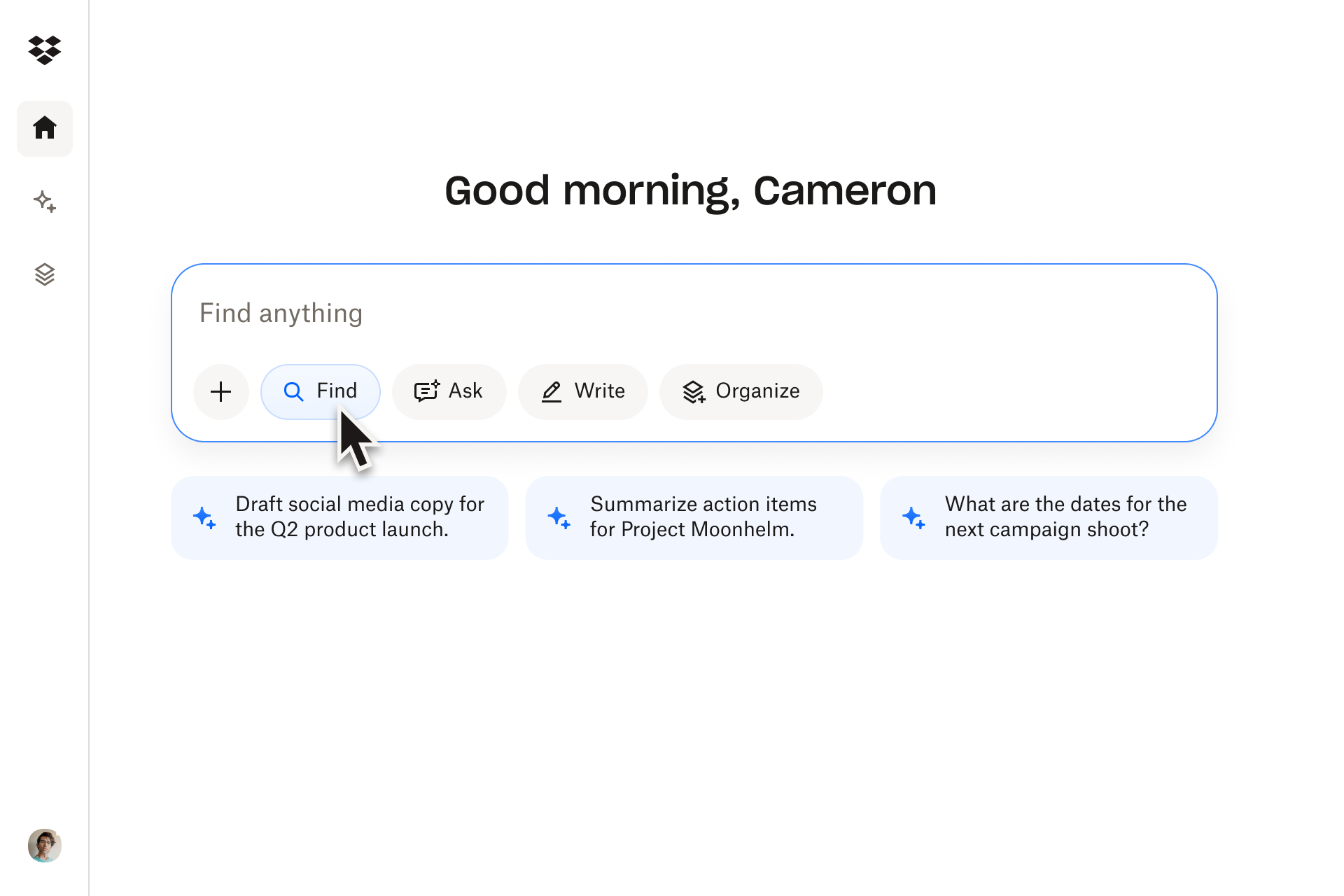
How Dash provides the solution across both formats
When teams choose tools, they’re really choosing how they want their workday to feel.
Dash is built so you don’t have to commit to one rigid experience. Whether someone prefers to live in the browser or in a focused app, they still tap into the same connected intelligence underneath.
The flexibility of Dash is what makes it powerful. Both formats—browser extension and standalone app—provide:
- Universal search across connected content
- Dash Chat for rewriting, explaining, and refining work
- Answers grounded in your connected apps and data
- Access to Stacks for project clarity
- A start page that highlights upcoming meetings and relevant content
Whatever type of team you’re running, everyone gets the same intelligence. They simply choose the environment that fits their habits best. In practice, that means less time learning tools and more time using them productively.
Connect insights and context across your tools
Dash connects to your tools and content to keep your workflows fluid and secure—whether you’re using a browser extension or the app—for a cohesive, contextual experience.
How to choose the right setup for your team
There are many ways to access Dash, which all work well for different people and situations—but certain signals can help you pick the best starting point.
Choose the browser extension if…
- Your team frequently works with live web content, like news articles
- Your team works primarily in web editors, documents, slides, or CMS tools
- You want a lightweight assistant that appears when needed
- You prefer quick rewrites, summaries, and searches inside the same tab
- Your workflows involve frequent multitasking across browser environments
Example: A social media manager creating posts about a news article can call on Dash to draft a post or align tone instantly in their browser.
Choose the standalone app if…
- You handle multi-layered projects or creative planning
- You want a more visual environment for navigating files and Stacks
- You rely heavily on Dash Chat for rewriting or exploration
- You need to manage context across several campaigns or accounts
Example: A designer planning a brand refresh might search visual references, organize assets in Stacks, explore direction summaries, and refine messaging—all within the app.
Many teams use both. Marketers may prefer the extension for fast edits, while creative leads may rely on the app for exploration and decision-making. Dash is built to accommodate both—without creating silos.
Use Dash for flexibility—wherever you work
Dash adapts to your team’s rhythm. Whether you anchor your workflow in the browser or inside a full-screen app, Dash keeps your content connected, your writing aligned, and your search and AI tools working together.
With Dropbox powering file storage and permissions, your team gets the AI workspace they need with minimal changes to how they already work. Try a demo or contact sales today and see the flexibility that Dash can offer.
Frequently asked questions



.webp)